Wednesday, April 30, 2014

Distribute & Grade Assignments in Google Drive Without Using Scripts


Chalkup is a neat service that combines the concepts of Google Drive and Edmodo into one slick package. In Chalkup you can create classes to which you distribute announcements and assignments in the message board style that you find in Edmodo. Your students can sign-in to see what you post, reply to your posts, and submit assignments. The best aspect of Chalkup is found in  Google Drive integration.

Through Chalkup you can distribute Google Drive files to your students and they can submit Google Drive files to you. Rather than running a script like Doctopus when you want to distribute an assignment template to your students, you can simply select a file from your Google Drive account and share it through Chalkup. When students submit assignments to you in Chalkup you can comment and draw on their Google Documents as well as give them a numeric grade for their assignments. Watch the video below to see how easy it is to distribute and grade assignments in Chalkup.

Thanks to Free Technology for Teachers by Richard Byrne


Tuesday, April 29, 2014

Quizlet


Quizlet is a worldwide educational utility, with tools enabling students to recall key concepts in every subject.  It has quality text to speech audio in 18 languages and it's free.    

Monday, April 14, 2014

Congratulations Jenna Mason


Congratulations Jenna Mason on finishing up your internship at Belview.  Best of luck in Franklin County!  We will miss you!

Tuesday, April 8, 2014

Famous Americans Come to Life Using Aurasma


Famous Americans come to life using the free augmented reality app Aurasma

Sunday, April 6, 2014

Thursday, April 3, 2014

Famous Americans Interactive Tour


In an effort to prepare for the Social Studies SOL, the new Famous Americans Wall of Fame is up at Belview and ready for tours. Each famous American is linked to an Aurasma video highlighting the standards of learning. It has replaced the time line of decades and is located on the wall across from the library. Get an iPad and take your students on an interactive tour through history! Enjoy!


Paperless Archived SOL Released Tests Practice on iPads

In an effort to go paperless.....


You can pull up archived SOL released tests on the iPad and use an app called Notability 
  • Choose your test and you will be prompted in the top right corner to Open with.......
  • Choose Notability
  • Create new note
  • Students can choose which tools at the top to use. They can write on the document, highlight and record while they are reading
  • You can also save the document in Dropbox or Google Drive or email it when students are done (if you are logged in)
You can also use this app to practice passages in Read Works from your iPad.
  • Choose your grade level, skill and passage
  • Click on the passage link and in the top right corner click Open With
  • Choose Notability
  • Create new note
  • Students can choose which tools at the top to use. They can write on the document, highlight and record while they are reading
  • You can also save the document in Dropbox or Google Drive or email it when you are done (if you are logged in)

Friday, March 28, 2014

Technolgy Enhanced Items

Here is a link to my Pinterest board with tons of SOL TEI practice sources:


Here is also a link to a free iPad app called Reading Comprehension which has great TEI practice items


Monday, March 24, 2014

The Reading Center


                        Dolch Words with Sounds


Google Research Tool

Accessing The Research Tool

By: Edumedic

Here’s how to find the research tool from your document in Google Drive:
Select the Research option from the Tools menu.

Screen Shot 2014-03-01 at 11.09.13 AM
You can use the keyboard shortcut (Ctrl + ⌘ + Shift + I on a Mac, Ctrl + Alt + Shift + I on a PC).
To find information relating to something specific you’re writing about, you can just type in the word or words into the research search bar on the right.

Alternatively, you can highlight the words in the text of the document, and use the keyboard shortcut or the research option from the tools menu as described above. The results will appear below the search bar.

If you select a particular search result, you get three options (as seen below): Preview, Insert Link, or Cite. Preview brings up a small box so you can preview the site it links to. Click on the site link at the top of the preview pane to open this page in a separate window, or click the arrow on the left edge to close the preview. Insert link, well, inserts a link into your text to that particular resource in the body of your text, and cite makes a footnote of the resource in the body of your text.
Screen Shot 2014-03-01 at 11.12.42 AM

You can search specifically for the type of results you want. Images, tables, videos, quotations, citations, places, personal results, and dictionary results are some of the options.

Citations

You have the option to select a default format for citations added to your document.
To do this, click the drop-down arrow below the search bar, and select your desired format – MLA, APA, or Chicago.
Screen Shot 2014-03-01 at 11.22.09 AM

Thursday, March 6, 2014

Principal kisses pig as part of reading incentive program

Belview kicked off it's One School, One Book reading program today with some special visitors.  Students took the "Pig Out on Reading" book challenge and Mrs.Grant kissed Daisy the pig.


Learn more about One School, One Book http://belviewelementary.blogspot.com/ 

Wednesday, March 5, 2014

Thanks ASA

Thanks to Radford University's ASA sorority sisters for coming to read to our students and help us celebrate Read Across America Day!


Ms. Teresa & Ms. Cochran
 

We love reading Dr. Seuss books!


Sunday, February 23, 2014

Augmented Reality

Former Belview principal, Rhonda Baker, utilizes Aurasma to make history come to life at Belview's 60th celebration! 

Tuesday, February 11, 2014

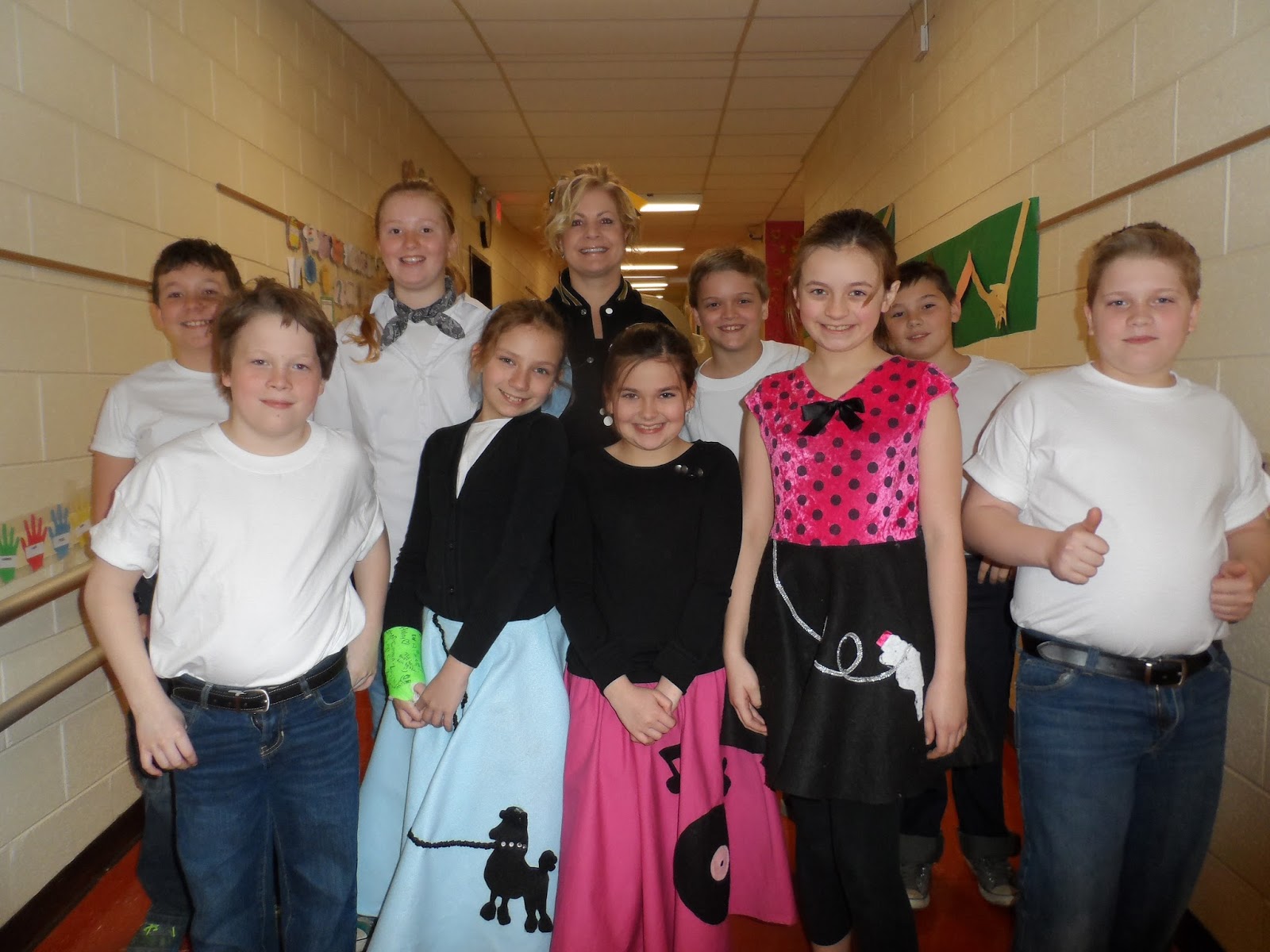
50's & 60's

Belview is celebrating 60 years of excellenc in education by dressing the decades!


Monday, February 3, 2014

Digital Learning Webinar

 
Join me for a webinar on Feb.5th, 2014 at 8pm to celebrate Digital learning Day!  We'll be using the following adobe connect room: http://vste.adobeconnect.com/vstelive to discuss digital learning.
 You can login as a guest with you first and last name.


Thursday, January 23, 2014

Digital Learning Day


Digital Learning Day is about giving every child the opportunity to learn in a robust digital environment everyday, with the goal of success in college and a career. We urge you to make a difference with digital learning in America's schools and take the pledge to support the effective use of technology to improve education for all students.
 

Friday, December 20, 2013

Mystery Skpye


Mystery Skype is an educational game, invented by teachers, played by two classrooms on Skype. The aim of the game is to guess the location of the other classroom by asking each other questions.

It's suitable for all age groups and can be used to teach subjects like geography, history, languages, mathematics and science.

Google Apps for Education


Belview Elementary is piloting the Google Apps for Education platform to promote the success of all of our students.  Google is offering educational institutions hosting for email, calendars, and other productivity tools through Google Apps for Education, an integrated communication and collaboration solution.


Flubaroo


  • Grade online assignments in a single step!
  • Get reporting and analysis on student performance!
  • Email students their scores.


  • You can try Flubaroo now by grading a sample assignment.
    Note: You'll need a Google docs account to do this.

    Follow these steps:
    1. Open this spreadsheet. Make sure you are signed into your Google docs (or Gmail) account when viewing it.
    2. Before you can grade it, you'll first need to make your own copy. Do this from the File menu, as shown:


    3. Once you've made the copy, follow the instructions for grading. The first response should be used as the answer key.


    Wednesday, December 18, 2013

    Tuesday, December 17, 2013

    Blendspace

     
    Blendspace Teacher Resources
    • Flip your classroom
    • Project-Based Learning
    • Differentiated Instruction
    • Collect web resources in one place and share with just one link
    • Measure student understanding with built-in quizzes
    • Monitor student progress and adapt to student needs in real-time
       

    Monday, December 16, 2013

    Zondle


     A free website that gamifies learning. Students earn zollars, collect badges that you award,
    and compete on game leaderboards: increasing motivation and achievement
     
    EMPOWERING TEACHERS

    whole-class teaching
    Add our unique games-based approach to your classroom teaching: whole-class games on your whiteboard to increase student engagement.
    connect to edmodo

    ENGAGING STUDENTS

    play to learn in any game
    Students play and practise in any game of their choosing (web or mobile), keeping them engaged and helping encode more into their long-term memory.
    e-safety
    ENHANCING LEARNING

    grounded in research
    zondle’s approach to learning is grounded in education research from the University of Oxford and neuroscience research from the University of Bristol.
    zondle makes sense: choosing which games to play motivates engagement, having fun while learning increases learning outcomes.